HubSpot Integration Usage Guide
Open the App
-
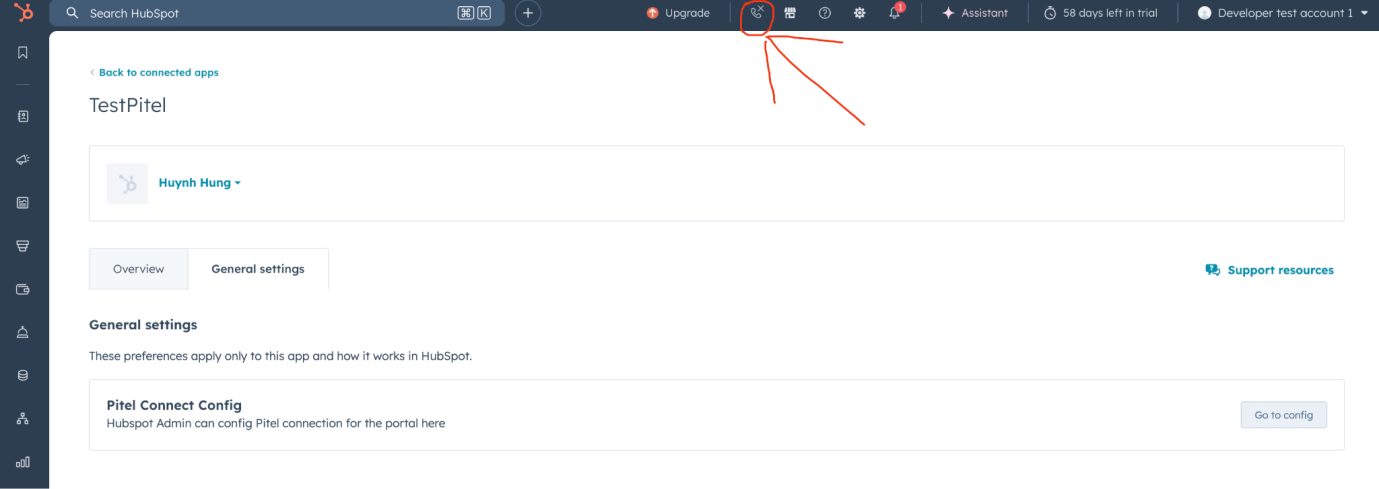
On the HubSpot header interface, press the Calling button.
-
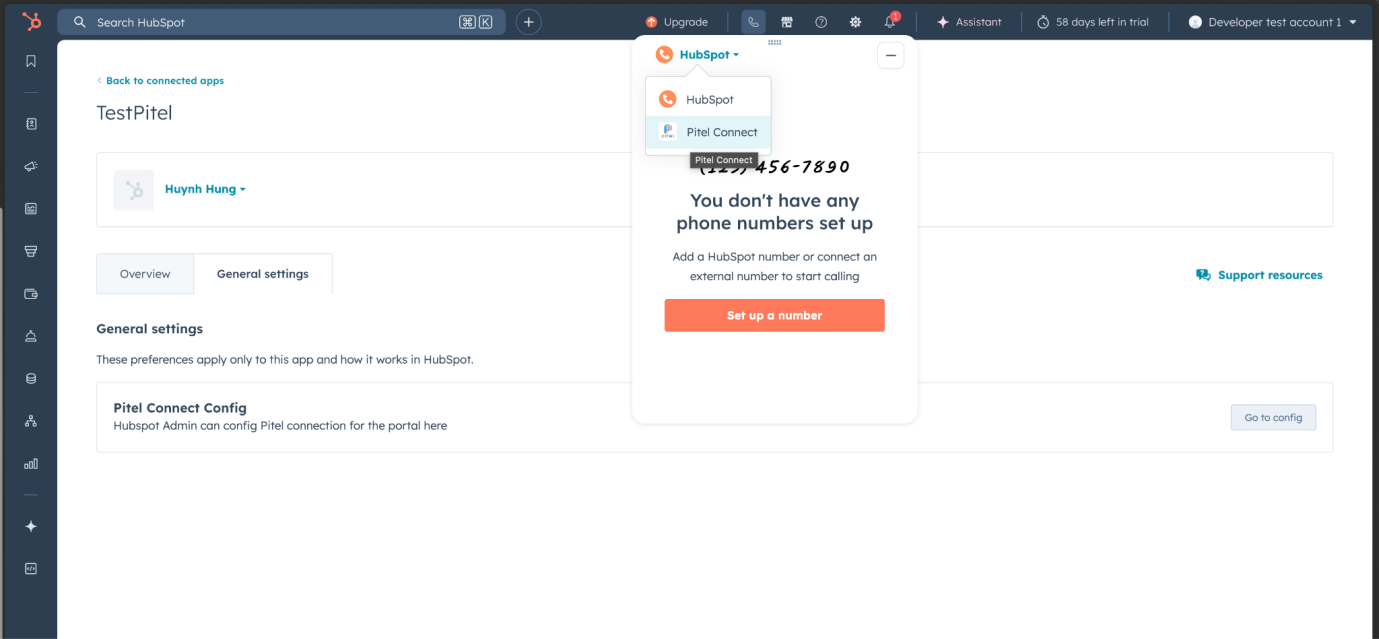
Click to select provider and choose the Pitel Connect app.
Log In
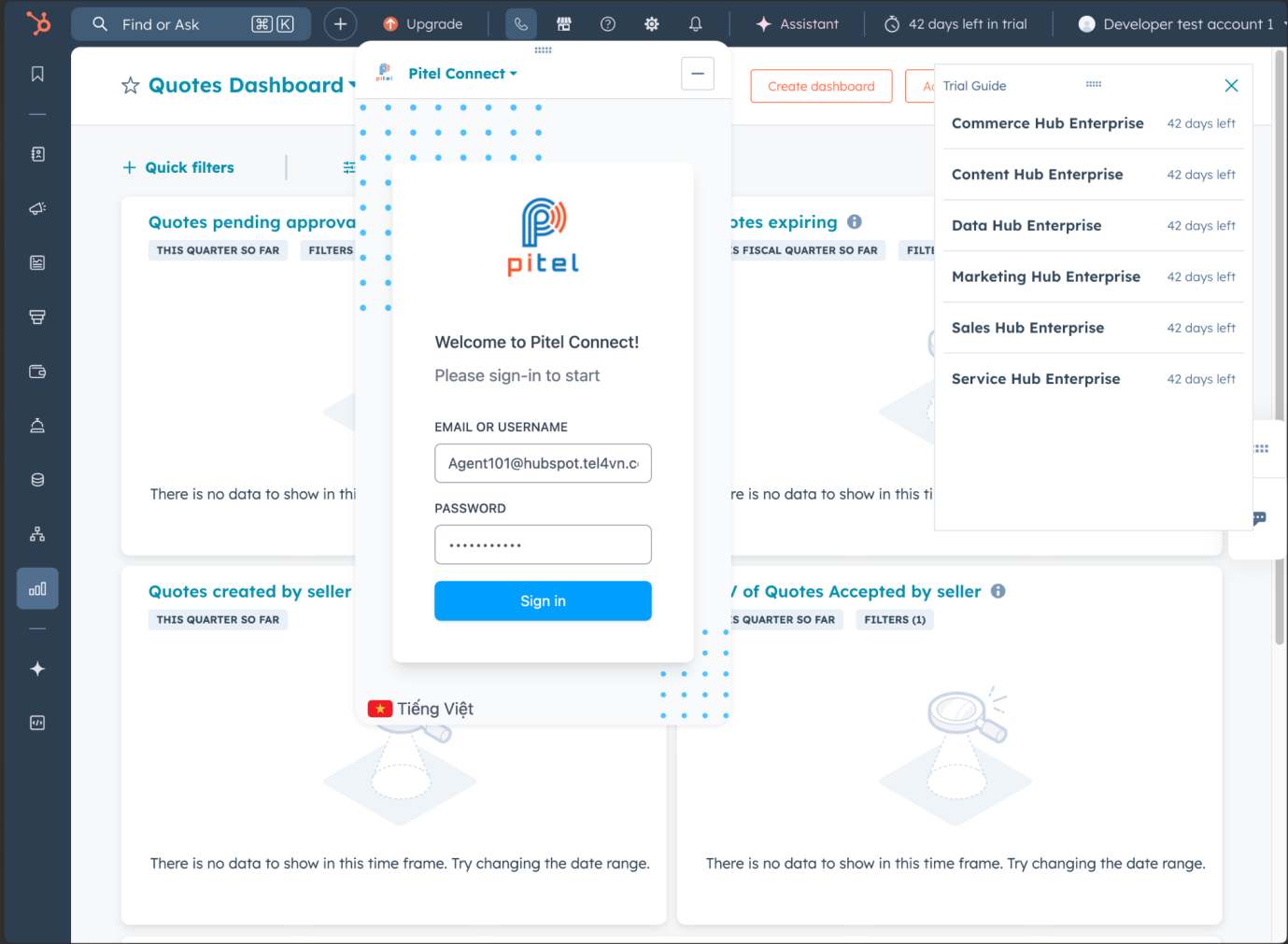
Log in using your Pitel agent extension account credentials.
Select "Open calling window", and a new window/tab will open displaying the Pitel Connect app.
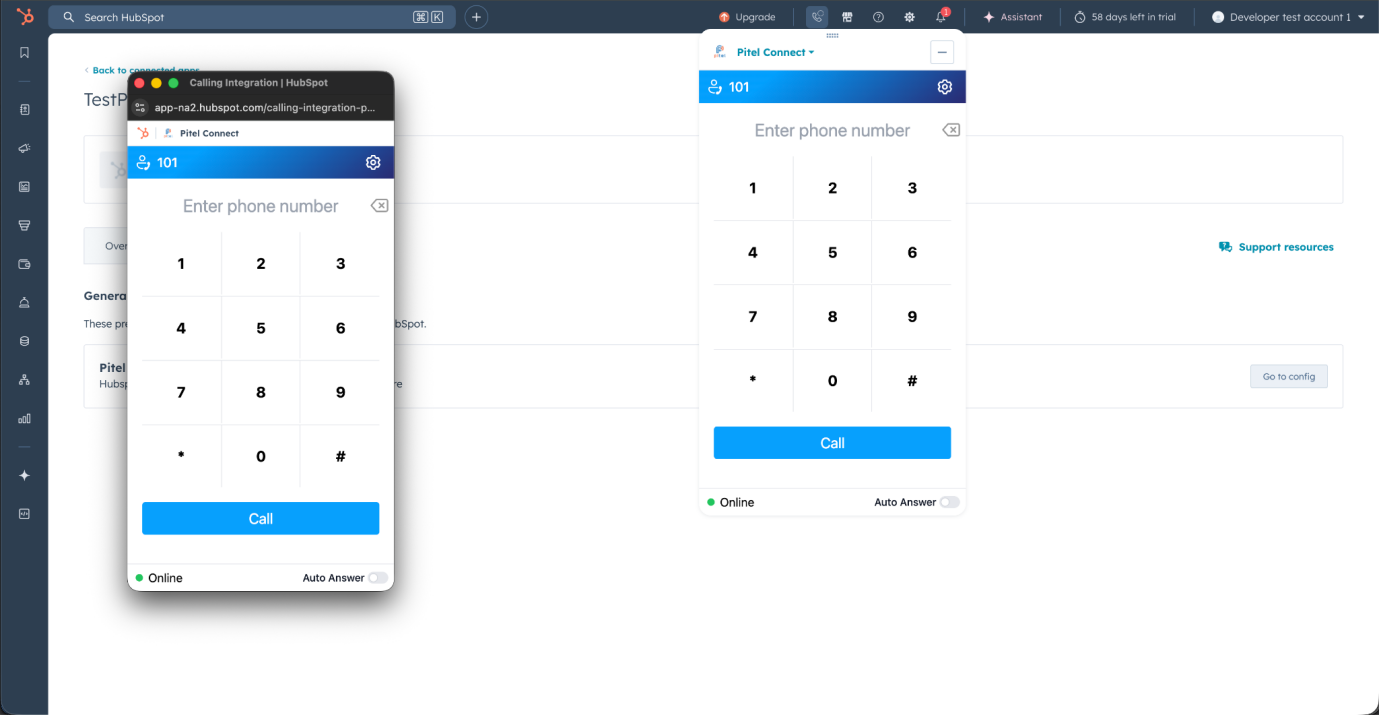
There are two ways to use the dialer:
-
Directly in that new window/tab:
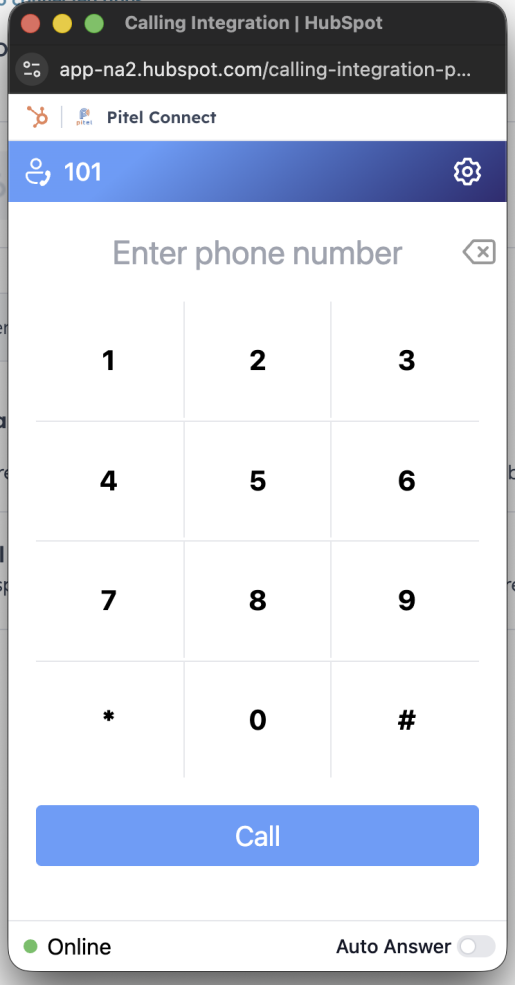
-
Using the widgets directly on the HubSpot interface:
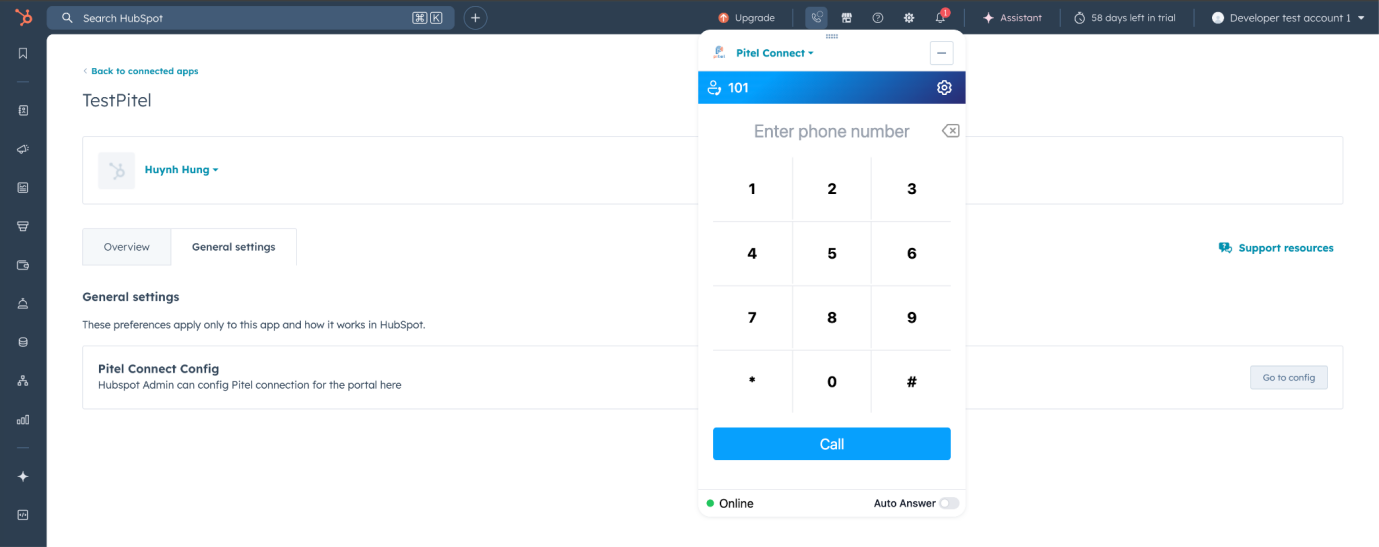
Make a Call
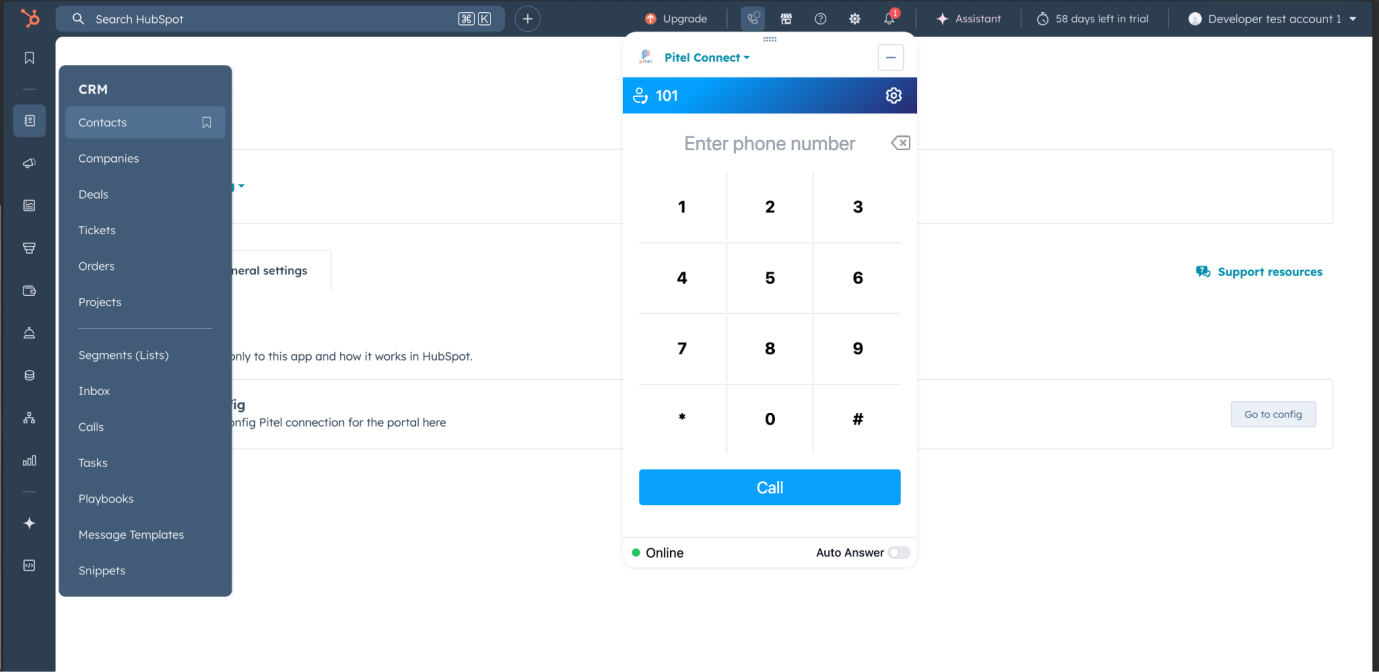
You can make calls by:
- Entering the phone number directly on the dial pad.
- Clicking the phone number directly from the HubSpot interface (contacts list, contact profile, etc.).
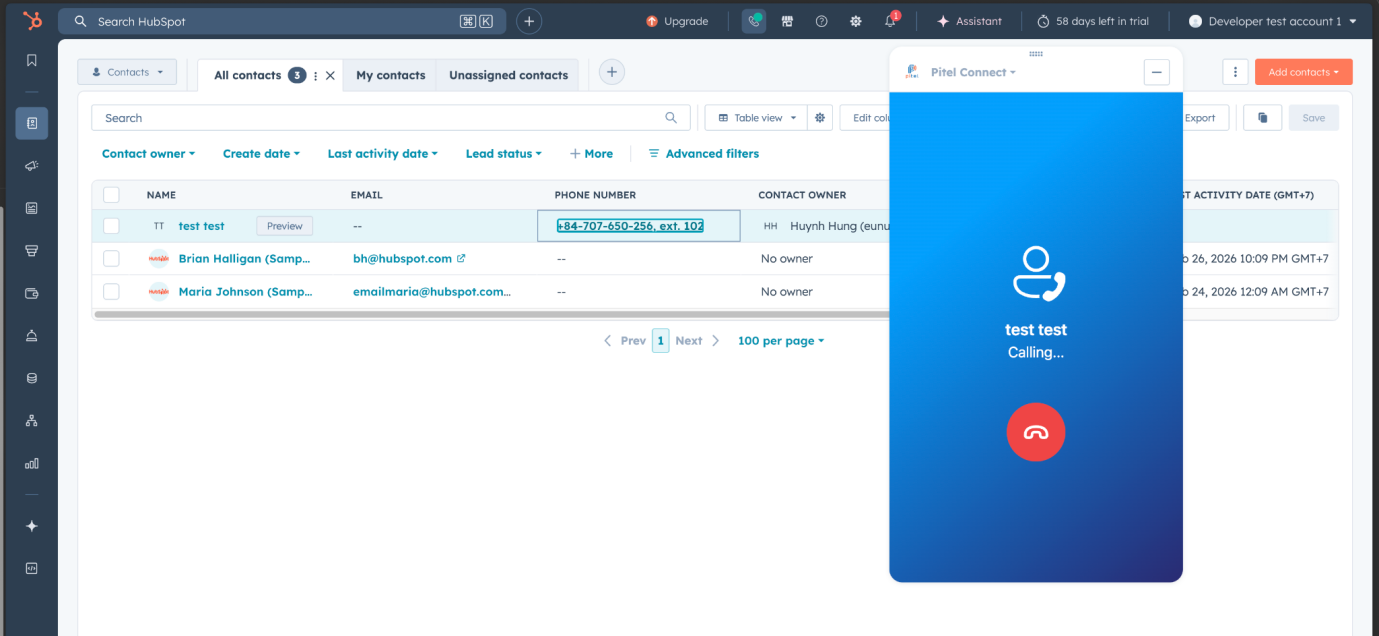
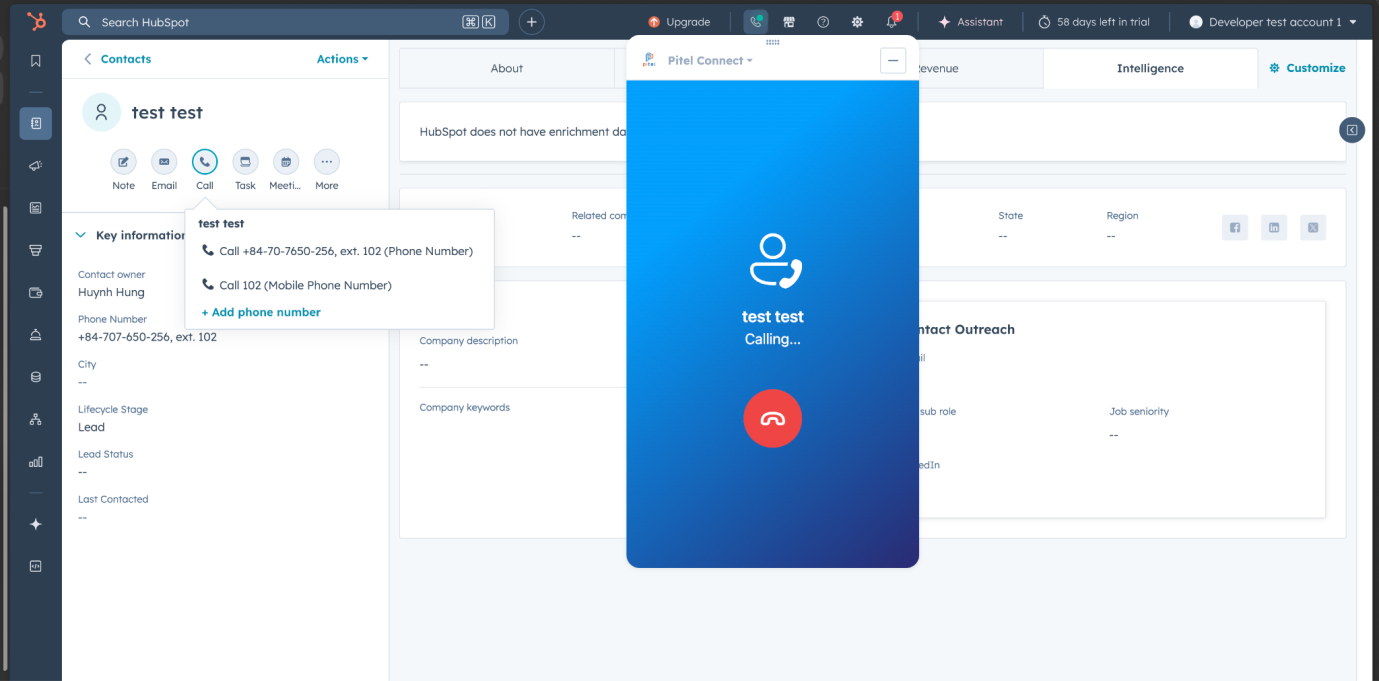
Call Information & Recording Sync
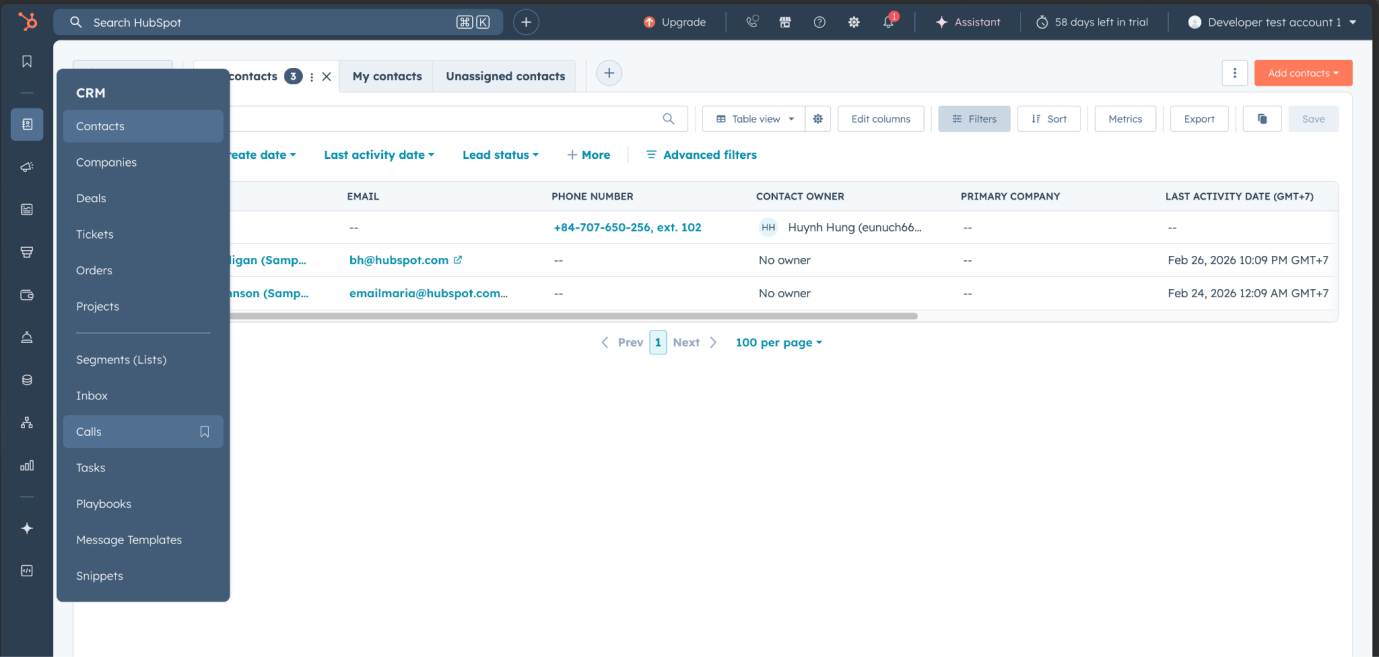
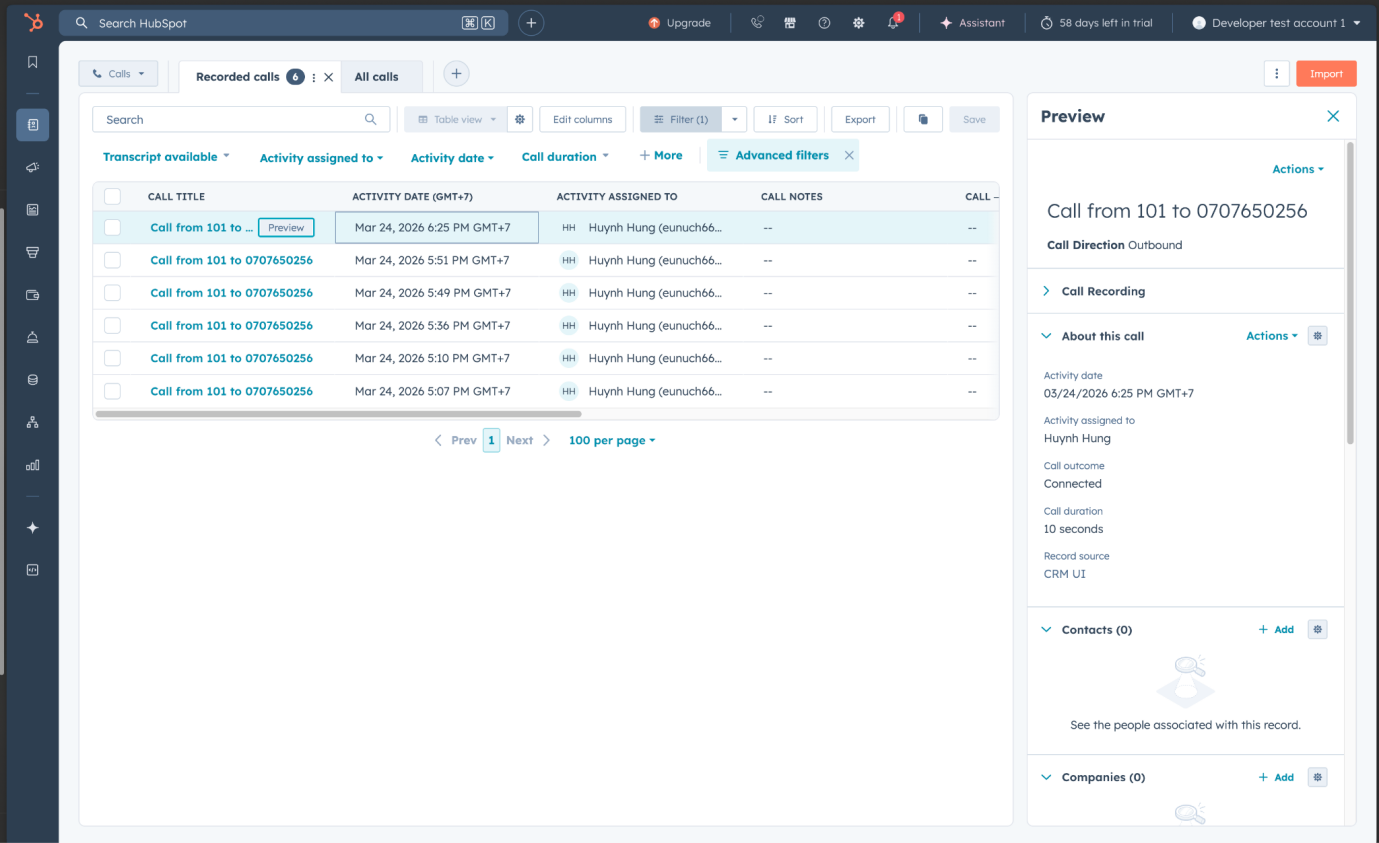
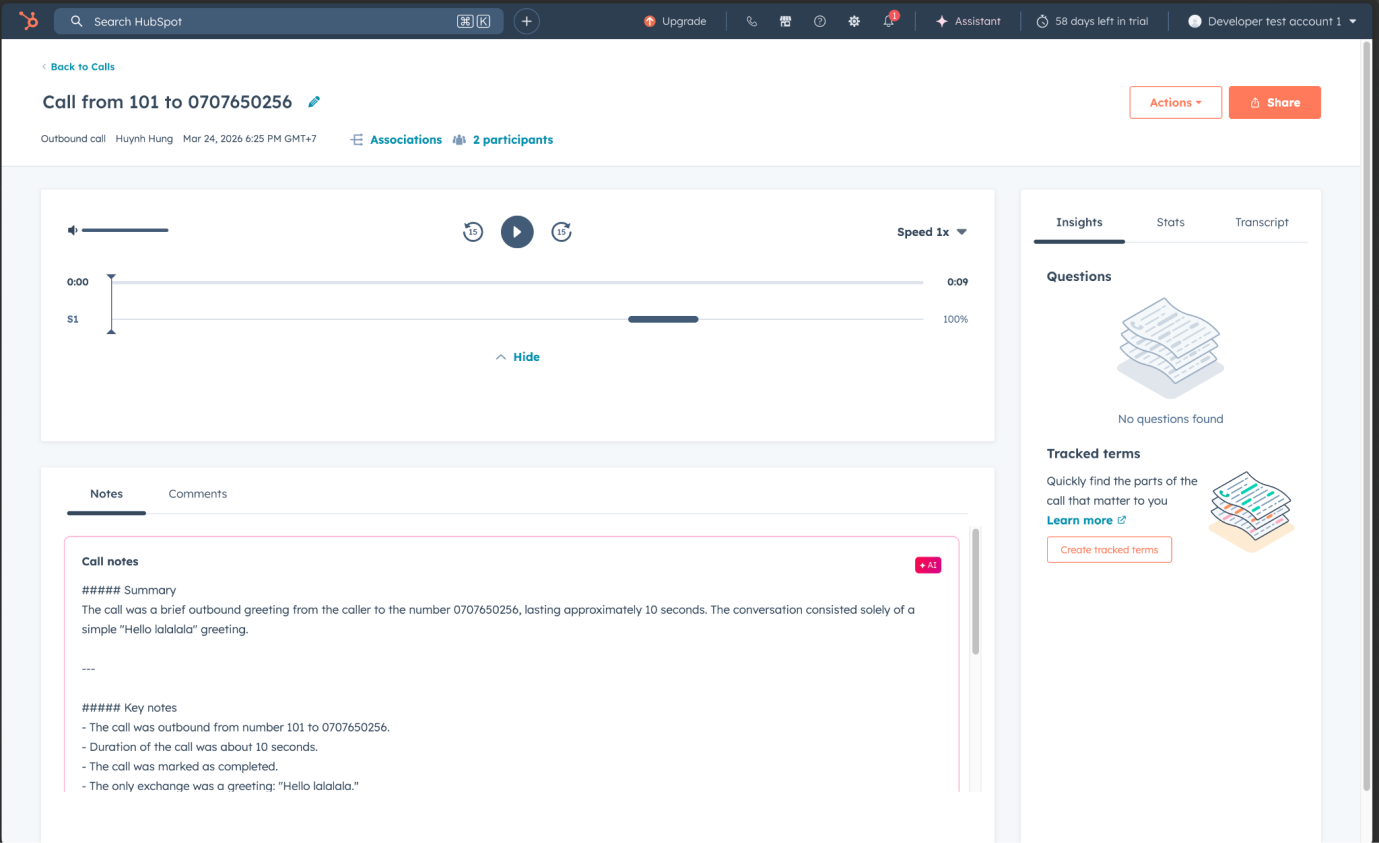
Call History (CDR)
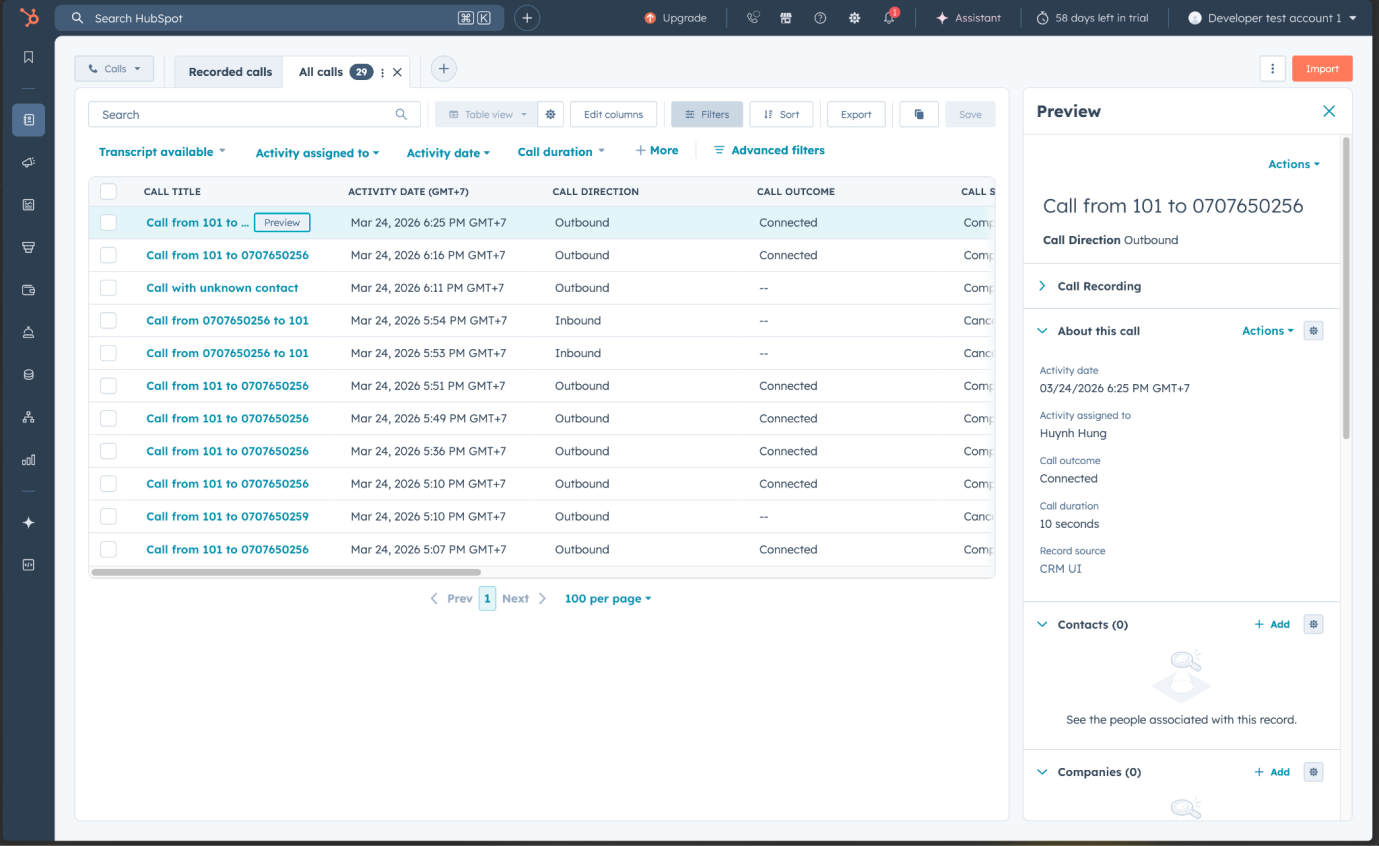
A call log is created concurrently when the call starts; this log is marked as incomplete initially.
Approximately 30 seconds after the call ends, the system updates the full call details (status, duration, timestamp, etc.).
Call Recording Sync
Approximately 5 minutes after the call ends, the call recording file/link will be synchronized and attached to the call log by the system.
Auto-Create New Contacts
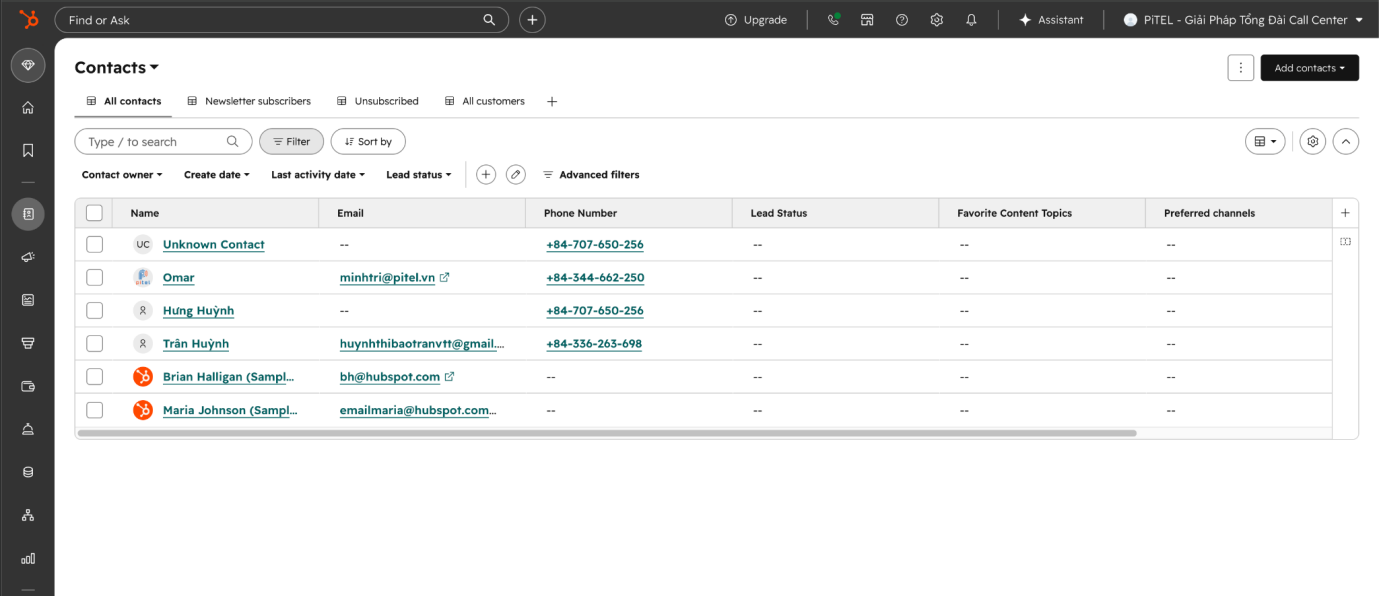
If the "Create new contact" option is enabled in the configuration:
- When you make or receive a call to/from an unknown number (not in your HubSpot contacts list), the system will automatically create a new HubSpot contact for that number.
- The new contact is created approximately 30 seconds after the call ends.