Installation & Configuration
Install the Pitel Connect App
-
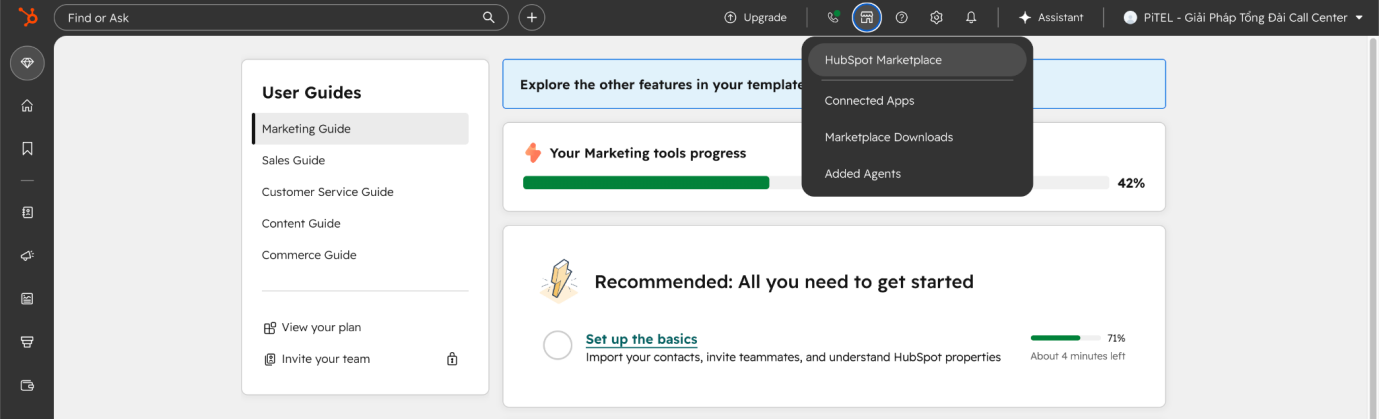
Access the HubSpot App Marketplace, search for "Pitel Connect", select the application, and click Install.
-
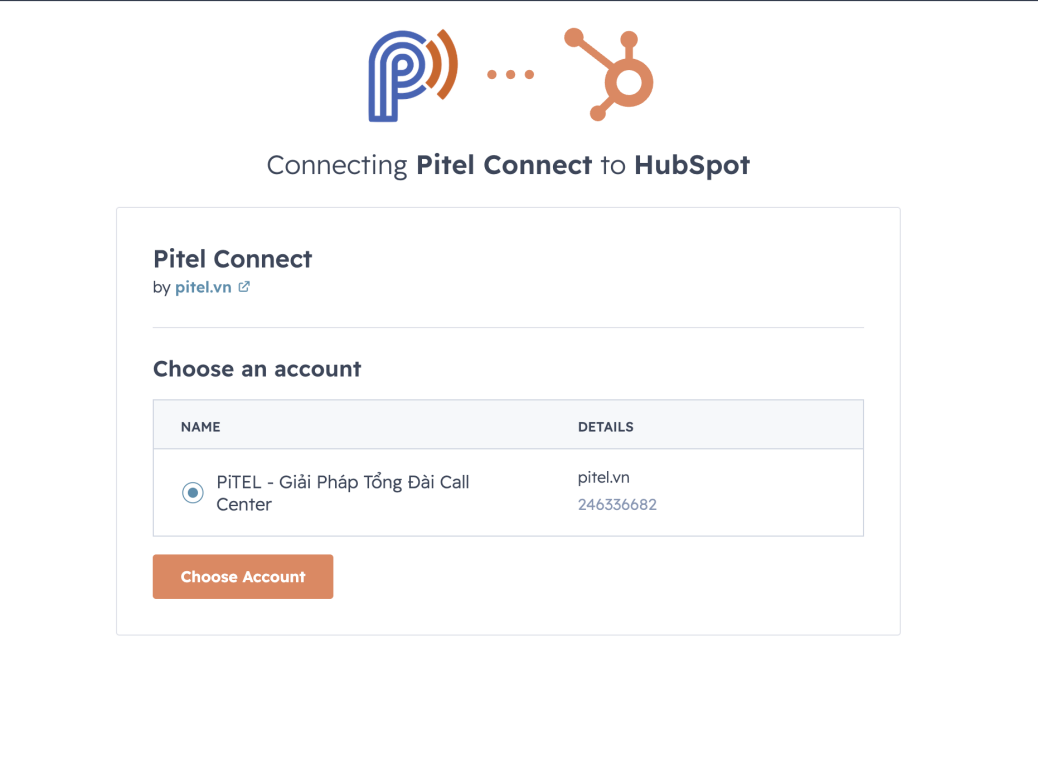
Select your HubSpot account and select Connect app.
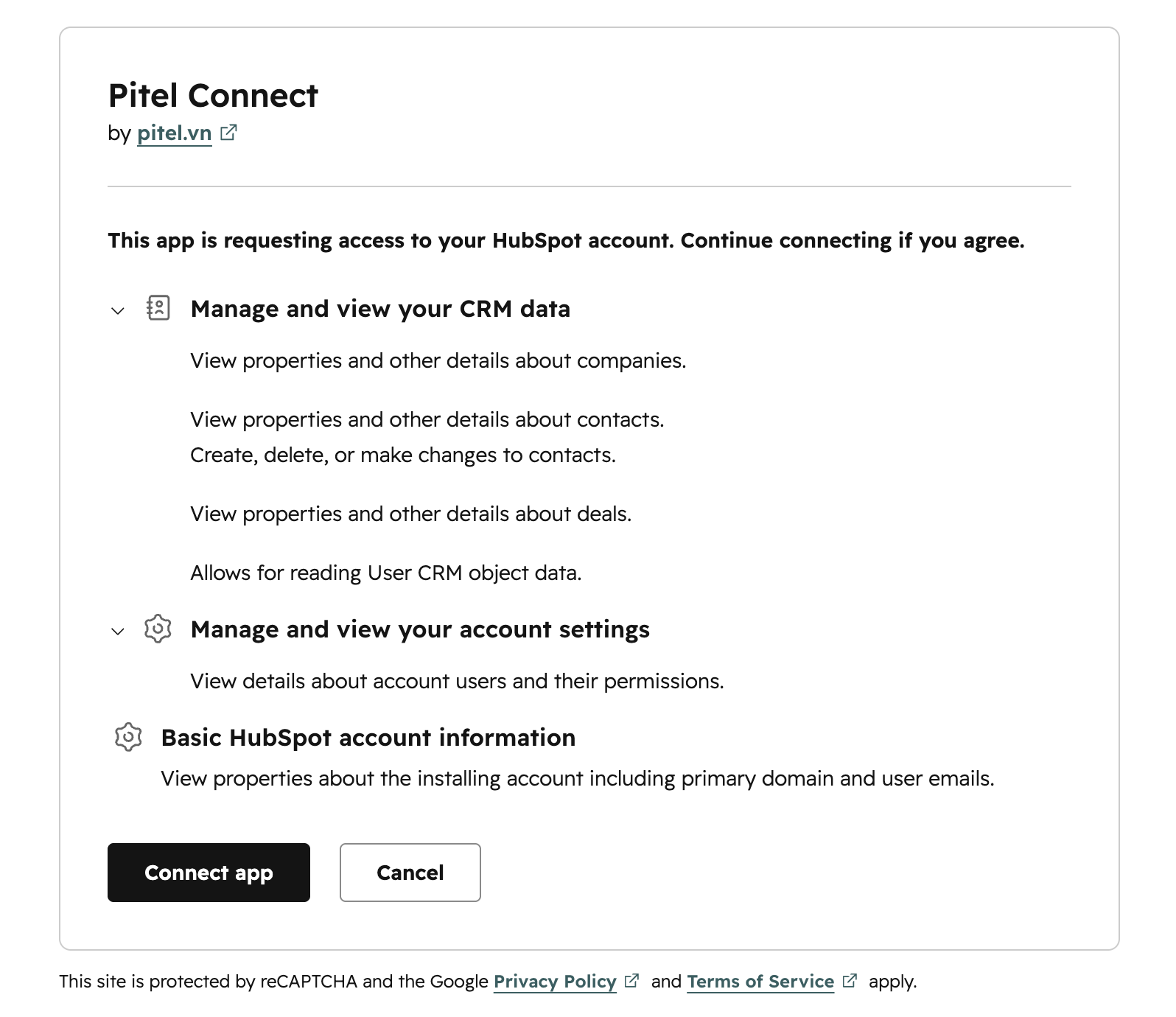
After installation, you will enter the Pitel Connect HubSpot settings screen, ready for the necessary configuration steps.
Alternatively, you can access this Configuration section at any time by:
- Go to Settings (Icon ⚙️ in the header) → Select Integrations → Connected Apps → Select Pitel Connect → Select the General settings tab.

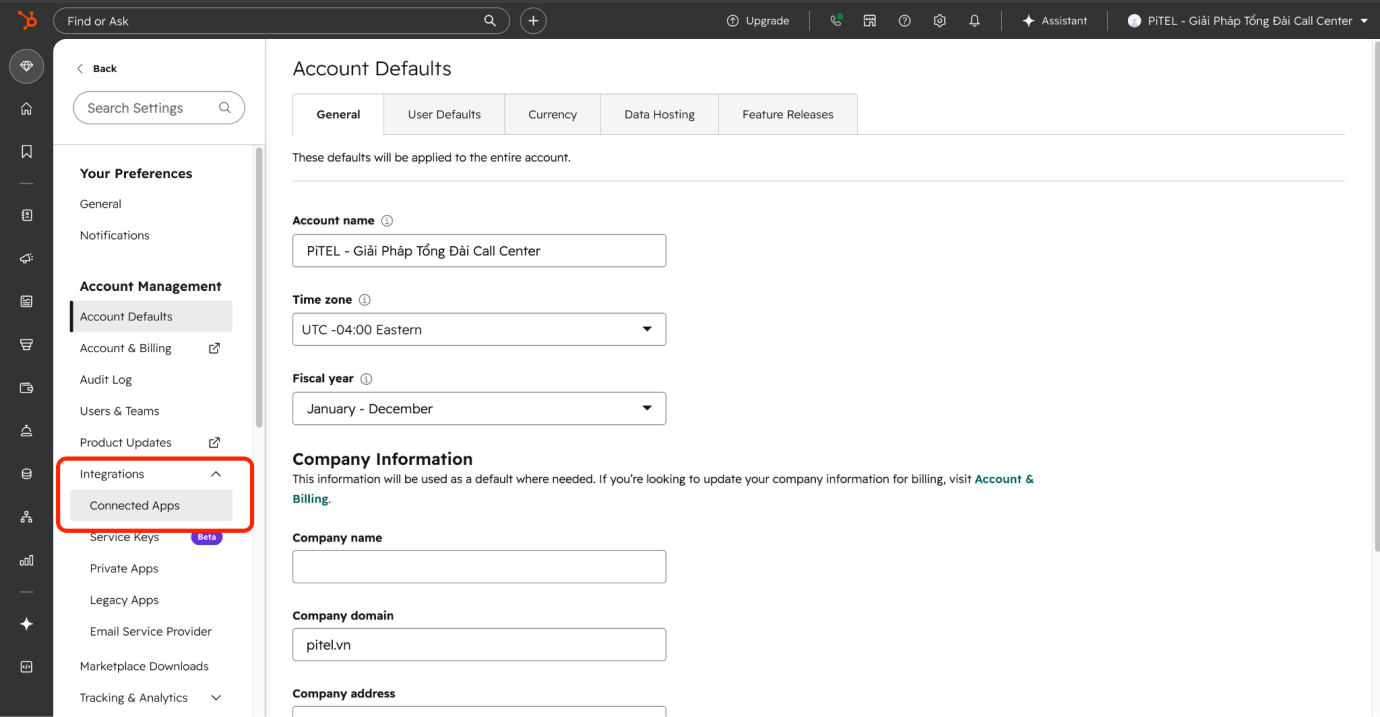
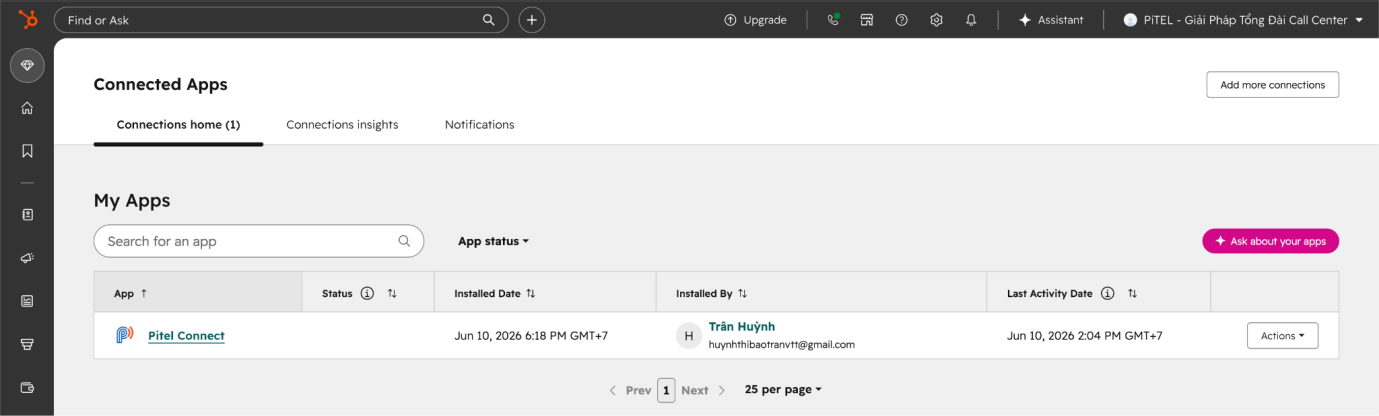
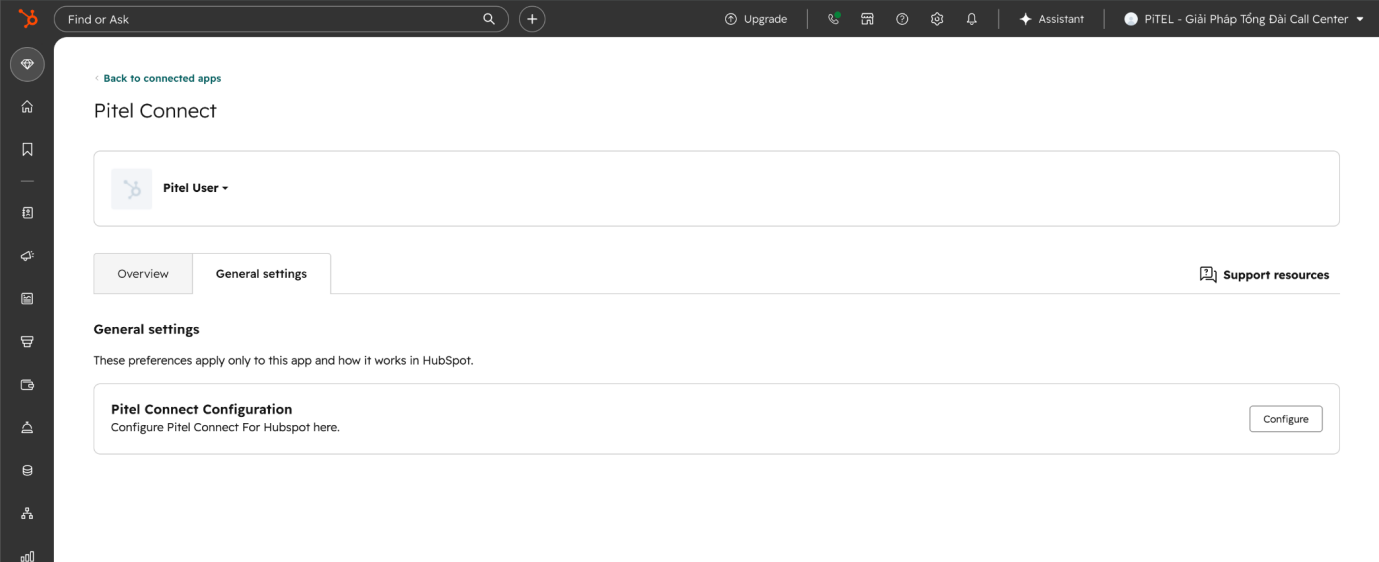
Configuration
-
Press the Config button.
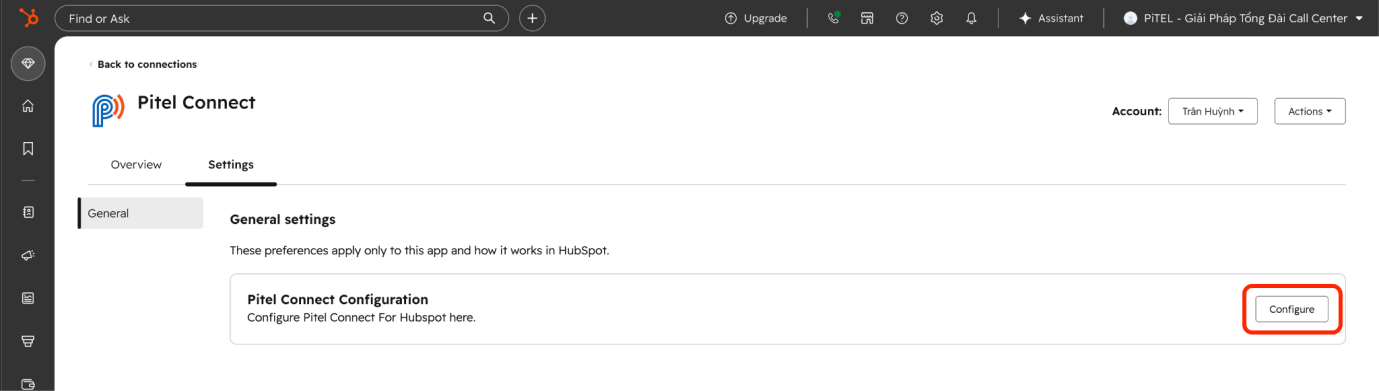
-
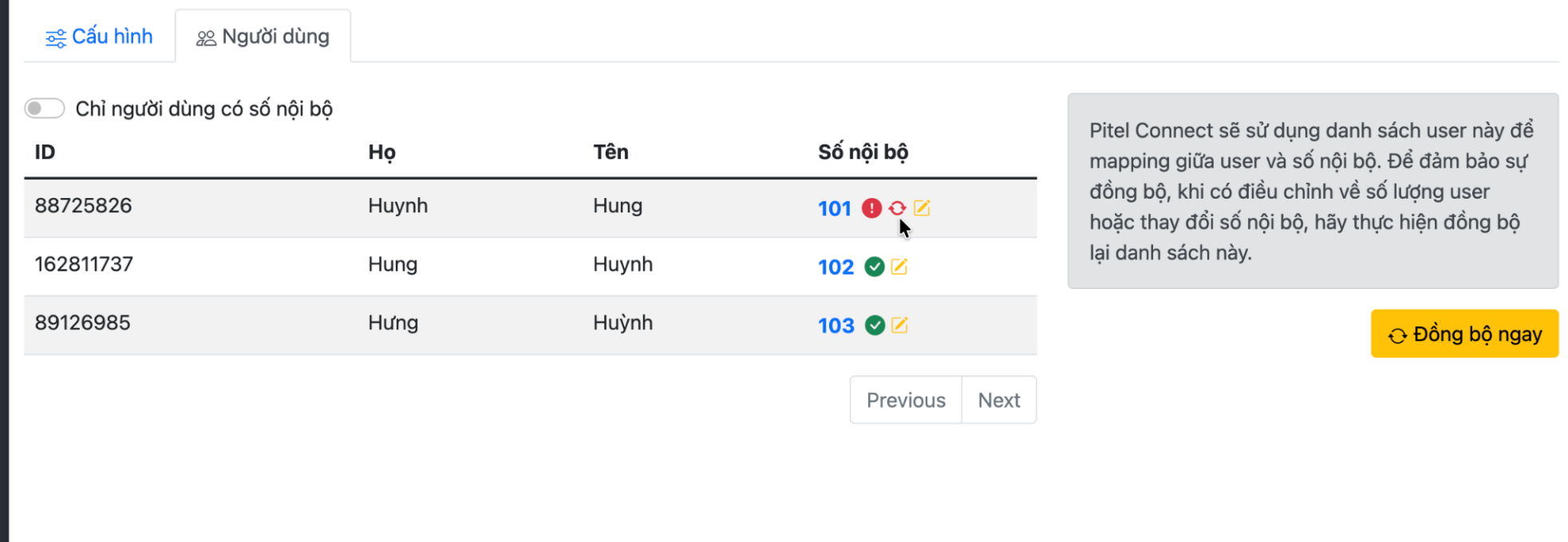
In the Users tab, to sync users from HubSpot, select Sync → Sync Now.
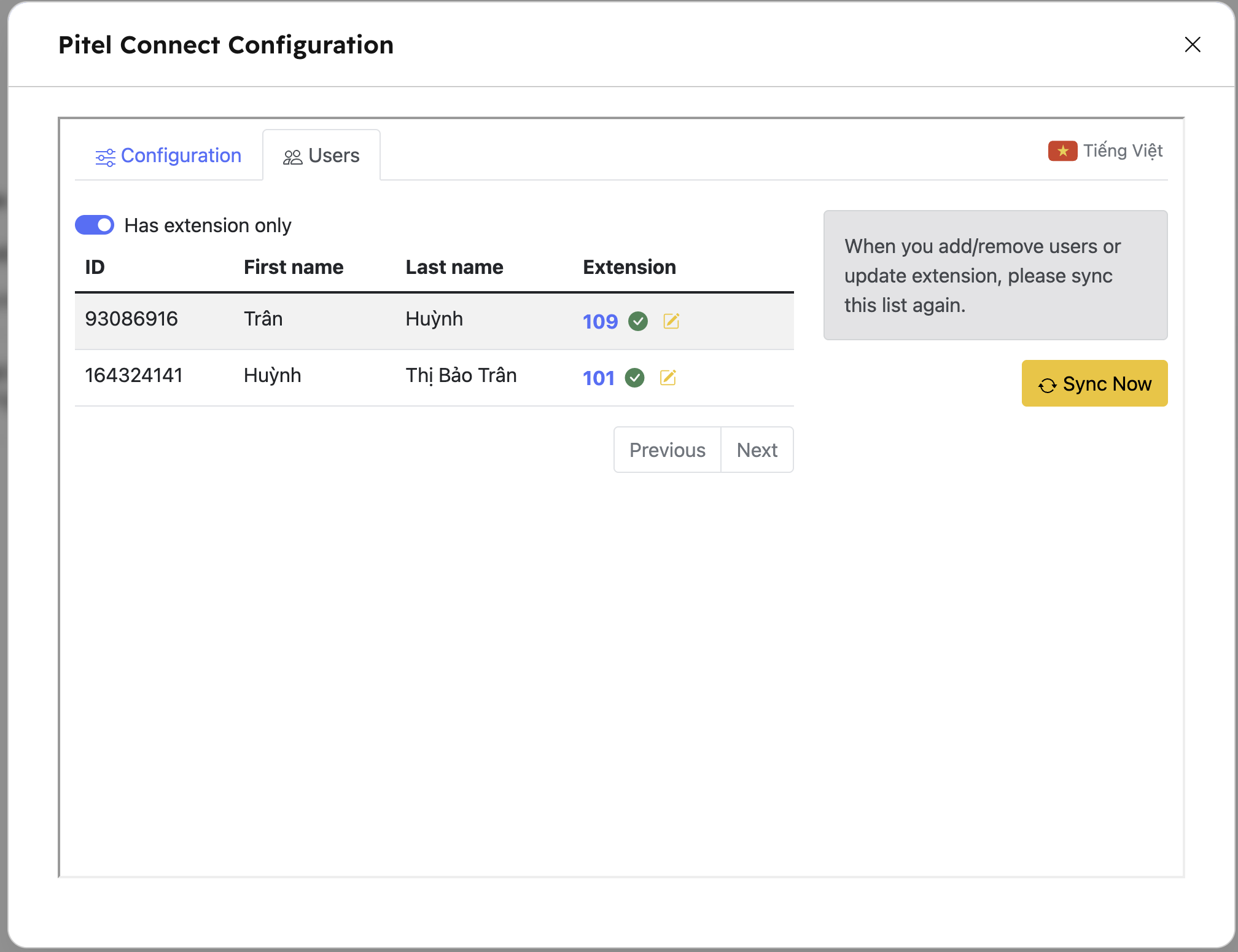
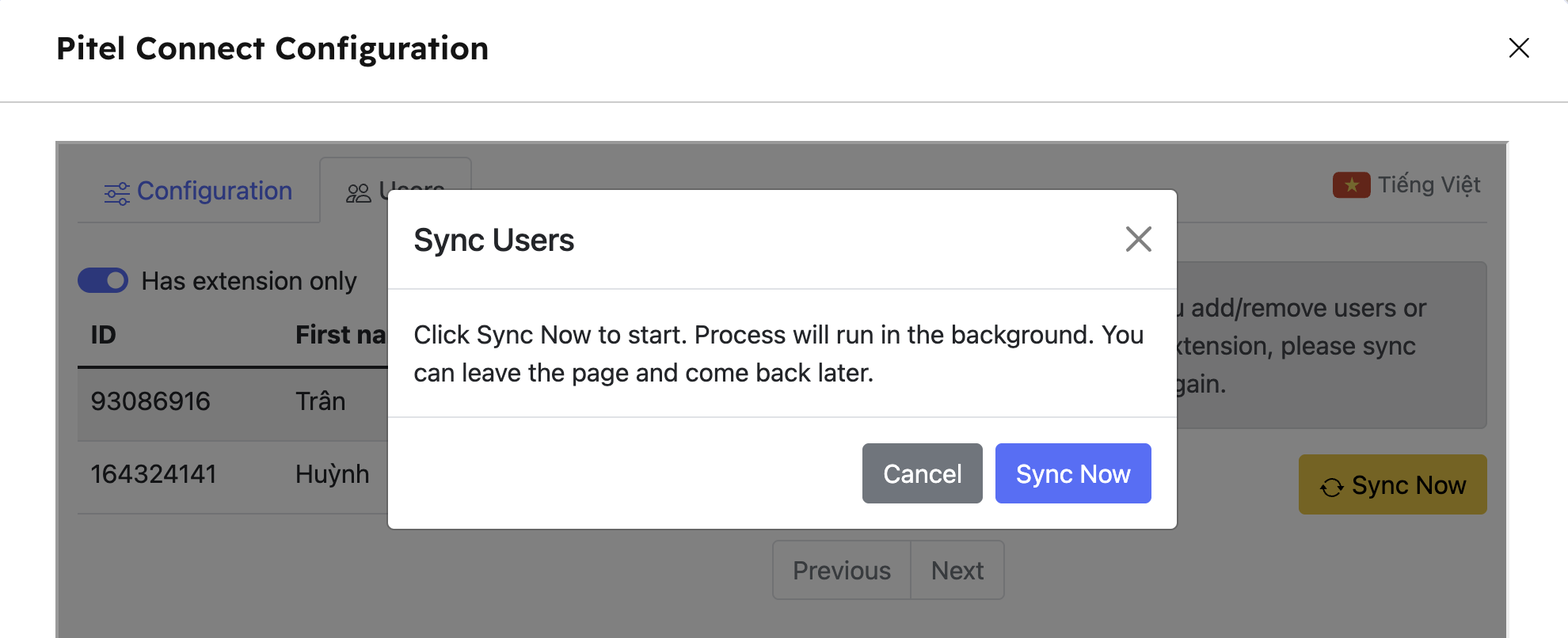
-
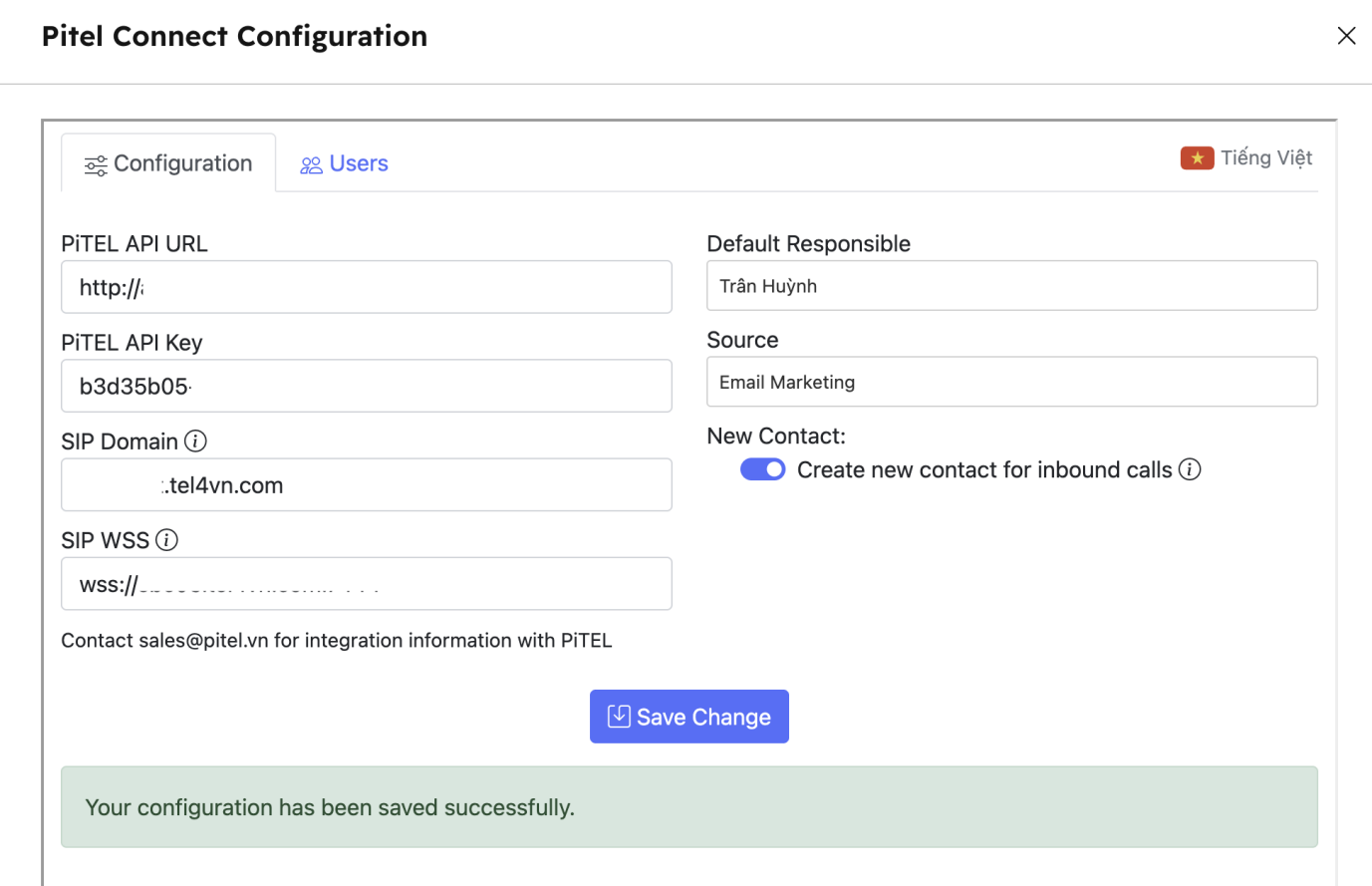
In the Configuration tab, enter the required API connection details and configure settings, then select Save changes.
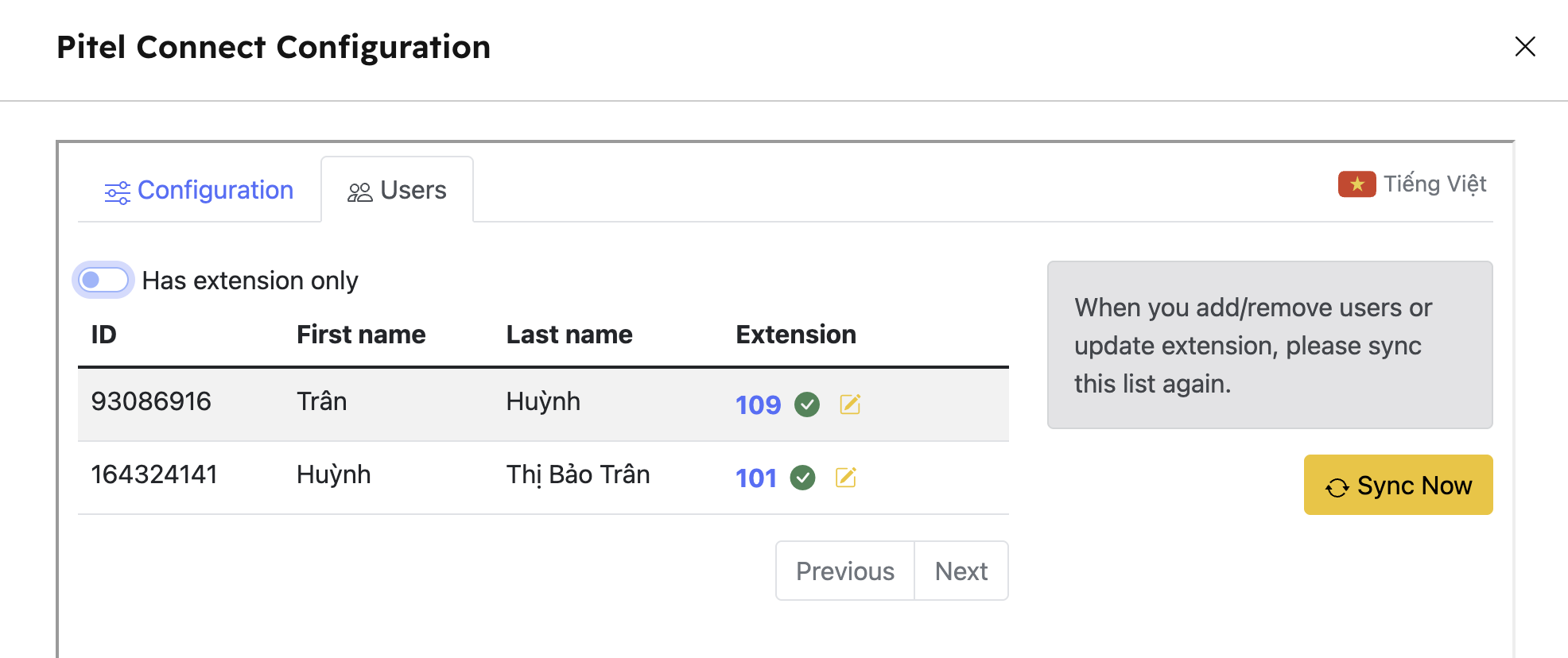
Turn off “Only users with internal numbers” to see all users. This is useful because new users synced from HubSpot may not yet have an extension assigned.
-
Enter the extension for the user and save it. Wait about 5 seconds for the system to save; a green checkmark will appear indicating successful saving. Once the user has been granted the extension, they can make calls via the Pitel Connect app.
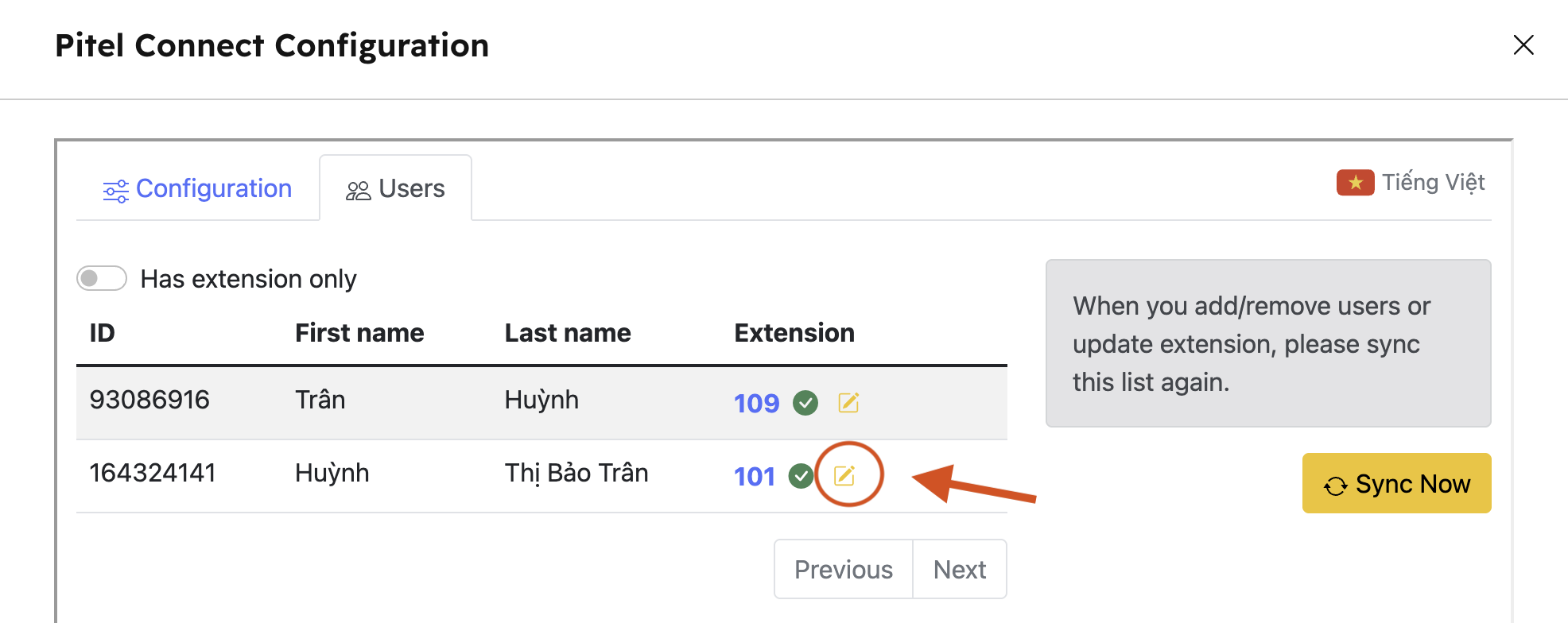
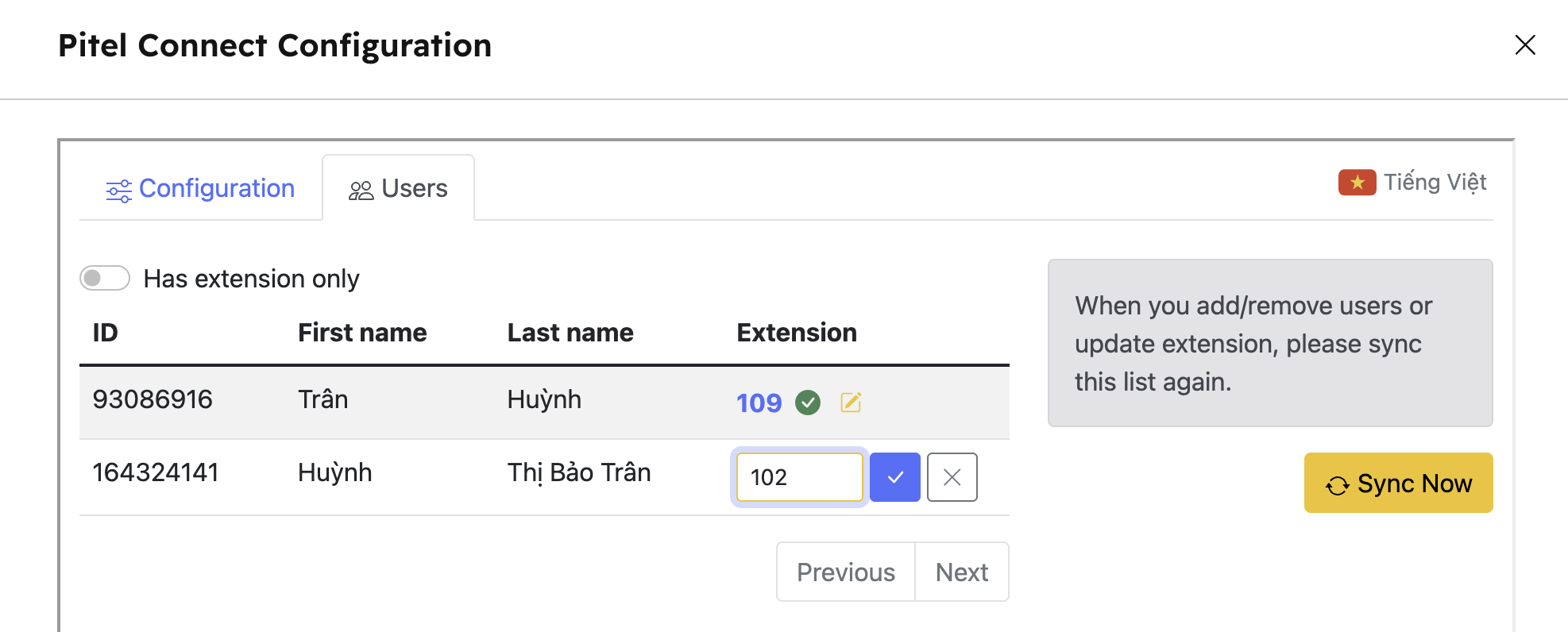
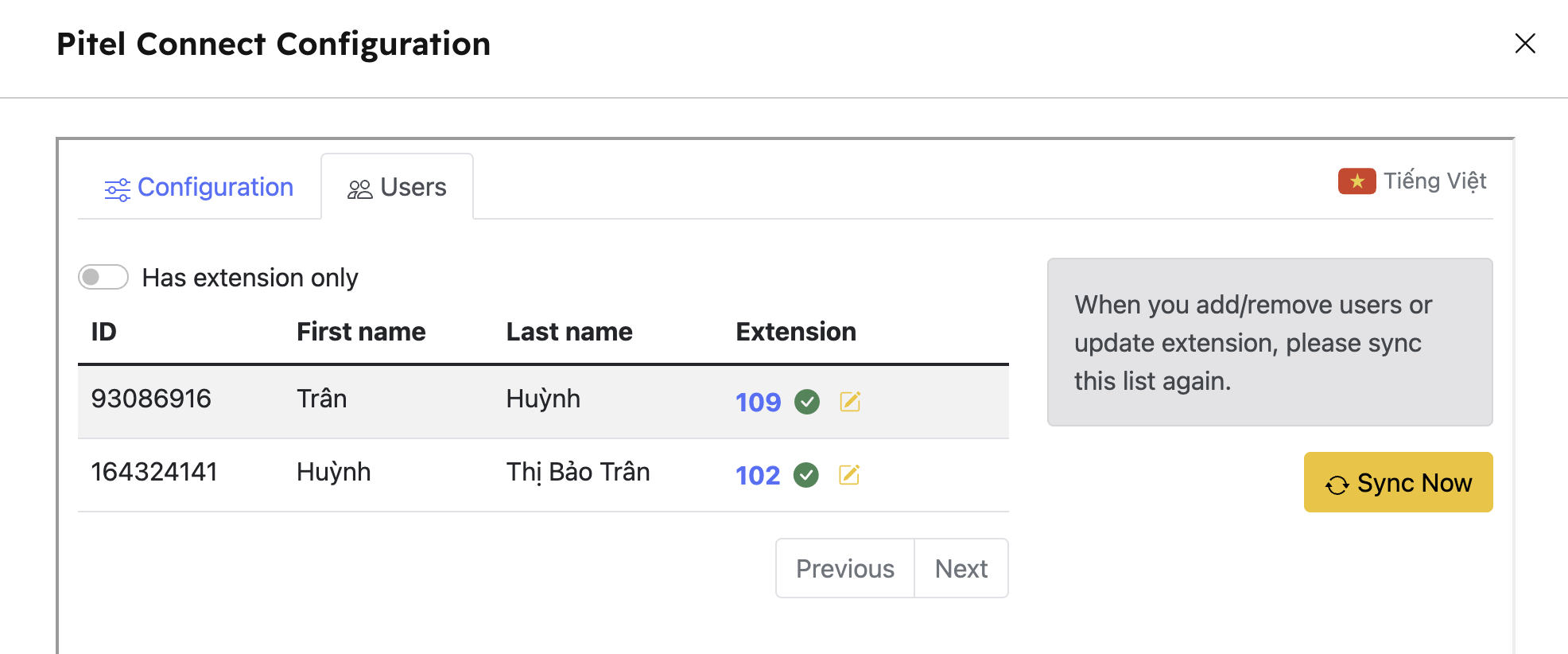
If the process fails, you can click the retry button to try again or choose to import a different extension.